Friday, May 23, 2014

South Middle School Chromebook Cohort Group is Great!

I have had the pleasure of working with a great group of teachers this year at South Middle School. When we learned that South was going to receive sets of Chromebooks, the following teachers volunteered to be part of the Cohort Group: Mary Ann Botte, Kurt Melvin, Ezana Negash, Cassie O'Connor, Sharon Sanita, Chris Welch, and Shayna Wood.

These teachers agreed to attend training in order to be able to prepare for using Chromebooks with their students. We started meeting weekly before school in order to learn more about the functions of the Chromebooks and using Google Apps.

The Chromebooks were delivered to the classrooms in early March. The teachers started using them right away with the students who had returned their Chromebook Contracts. The students were engaged in the work and enjoyed having digital devices. For the classrooms that had previously had netbooks, the teachers and students found the Chromebooks to be much faster.

Intro to Chromebooks Google Presentation

We continued to meet some as a group and some individually. It was great for me to see the work and engagement that taking place in the classrooms. These teachers have done a fantastic job, and I wanted to share some of their work.

Samples of Work

Shayna Wood - 7th Grade Literacy

Chris Welch - 8th Grade Social Studies

Sharon Sanita - 8th Grade Math

Cassie O'Connor - 7th Grade Science

Ezana Negash - 8th Grade Literacy

Kurt Melvin - 8th Grade Science

Mary Ann Botte - 7th Grade Social Studies


Click on the site link to view more work completed by the SMS Chromebook Cohort Group.


Monday, April 7, 2014

First Year Teacher Great at Integrating Technology into Social Studies Classroom

Although Emily Lavery is a first year teacher, I have had several opportunities to work with her on tech integration in her 6th grade Social Studies class at North Middle School Health Sciences & Technology Campus. Ms. Lavery completed her student teaching at North last year, so I knew she was very tech savvy. However, I have been amazed at the ease in which she integrates technology in her classroom.

From the start of class, Ms. Lavery established rituals for using the netbooks in her classroom. Students use Google Docs on a regular basis and share their work with Ms. Lavery. She is then able to give regular feedback to her students using the Comments feature. Ms. Lavery created this screencast to instruct her students on how to use the comments feature. How to: Comment on Document.

Student Completing a Learning Check 


One of the areas that Ms. Lavery has focused on this year is Checking For Understanding. She has created weekly Learning Checks for her students to complete as formative assessments. The students can complete a Learning Check by filling in a Google Form. Then Ms. Lavery can check the form and send the results using Flubaroo script. Again, she created screencasts to assist her students with these.  How To: Learning Check and How To: Flubaroo


Ms. Lavery also set up gClassFolders for her students. The students have an Assignment Folder that is shared with her. The students add their assignments to that folder so Ms. Lavery can collaborate with them. These screencasts are resources for students on using the folders. How to: Creating a Document in Your Assignment folder and How to: Move Documents in Google.

The students also have a View folder that was created with gClassFolders. Ms. Lavery uses the View folder to share assignments, resources, and links with her students. In this screencast Ms. Lavery explains how she uses the View folders in her classroom: APS Google: Digital Space in Progress.

Another Google tool that Ms. Lavery is using with her students is the Doctopus script. This script allows her to automatically create copies of a doc (or docs) she selects, name it as she chooses, and share that doc (or those docs) with the students she chooses. This has helped her streamline her grading and feedback. This screencast demonstrates how Ms. Lavery uses it along with the Goobric extension: Sample: Doctopus and Goobric.


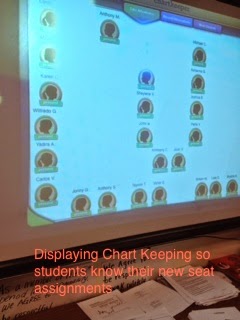
During the school year, Ms. Lavery completed a proposal and was awarded a teacher iPad to use in her class. She uses this iPad as a remote to her desktop so she can move around the room to check on student progress and still control her computer and projector. She uses Splashtop Personal for this purpose. In addition, she uses her iPad to help monitor student attendance, behavior and progress. She uses the Chartkeeper app for this.  Ms. Lavery can also change the student seat assignments and display her Chartkeeper so they know where to sit.


Ms. Lavery is always looking for ways to actively engage her students while they are learning the content. One of the tools she has used for this purpose is iCivics. This site provides many digital resources for Social Studies classrooms that are linked to standards. Students are able to play educational games in order to learn more about governments. Here are the screencasts for iCivics: How to: Log into iCivics,  How To: Play "Crisis of Nations" and How To: Strategy: Crisis of a Nation

One of the projects Ms. Lavery's students completed this year was creating their own government. This screencast explains the project:  How To: Design Govt Assignment. As she usually does, Ms. Lavery gave the students different options for creating their governments. If they wanted to choose a differnt option, they had to submit a proposal and show how they would still meet the purpose of the project and complete all the criteria of the rubric. A group of her Aurora Lights students proposed using Minecraft to build their government. Instead of say no to the students because she had not used Minecraft, Ms. Lavery researched Minecraft and asked for support from the Ed Tech team. In addition, she had the students submit approvals from their parents before starting this project. This really demonstrated her willingness to keep learning and be flexible in order to increase student engagement.

I always look forward to working with Emily Lavery. She recently emailed me some ideas of some things she wants to explore in her classroom. We will be meeting to determine which ones best enhance was she is currently doing in the classroom. I am sure I will also learn something new that I can share with other teachers.

Saturday, March 29, 2014

Using Online Porftolios...More Than Digital Scrapbooks

Last week I attended a "How to make Online Portfolios more than Digital Scrapbooks" Roundtable hosted by Ben Wilkoff. I am very glad I had this opportunity to hear what others had to say about Online Portfolios because this is one of my passions. I was also able to make connections with some great educators who share this passion.


As an Ed Tech Coach for Aurora Public Schools, one of my goals is to assist more teachers in helping their students create online portfolios. As a teacher, I had my students create online portfolios. Since I taught in a Career and Technical Education program, our focus was using the online portfolios for finding employment or applying for college. However, I see many additional uses for online portfolios.

The main takeaway from this roundtable for me was the importance of making the online portfolio reflective. To be effective, online portfolios must be reflective and get feedback from others. The teacher should not be the only audience of the online portfolio. The audience should also include other students, teachers, and parents. One of the quotes from the roundtable that I liked best is "Portfolios should be a bridge to content; not just a storage place."

I believe when I first started with online portfolios, I really did use them as a storage place. I have started changing that practice. However, after being part of this roundtable, I will put more of an emphasis on making portfolios more collaborate and reflective for teachers and students.

Another great quote from the roundtable was from Mike Muir, guest speaker. He stated "What is the evidence of your learning vs. what is the evidence of your completing the project?" This really stood out to me because I feel we often put more emphasis on the end product then we do on the learning that took place. Instead of creating a final product and moving on, the reflection should be built into the unit. I plan to explore the resources provided by members of the roundtable in order to be able to make this concept clearer for teachers and students.

Next week I am going to start an online portfolio project with an 8th grade Literacy class at South Middle School. They are using this as their final project. When collaborating with the teacher and introducing the project to the students, we will discuss that students will only include their best work in the online portfolio. In addition, we will discuss sharing and setting up comments. Another requirement will be for the students to write a reflection for each piece. I will work with the teacher to determine what she feels is important to include in the reflections. Some examples shared during the roundtable were:  
  • What do you know? What can you do? So What?  
  • What did we just learn, and why did we learn it?
  • 3-2-1: 3 things you learned, 2 things to share with someone else, 1 thing you still want to learn


One of my goals is to work with teachers at the beginning of the school year to start online portfolios with students. The students can then add evidence of learning throughout the school year. This will with help students show growth over time, especially students with special needs and English Language Learners. I would also like to see student sharing these online portfolios with their parents throughout the year, especially at parent-teacher conference.


In a future blog, I hope to share some awesome online portfolios created by students at the schools I support.

If you are interested in watching the session click on the link below:
Link to Session


Some resources shared during the roundtable:


Thursday, March 13, 2014

Chromebook Deployment at South Middle School a Success


210 Chromebooks arrived at South Middle School. Debbie Renaud, Tech EA, and I were excited and ready to get them out to students

boxes 2.jpgphoto 1[1].JPG


unpacking.jpgWe decided to unpack one set of 30 at a time. photo 4.JPG


Steps:
Unpack
Insert battery
Open and login to check
Exit Session
Record Number on back
Add Label on front


Inventory Tips:
  • If you have a barcode scanner, you can use it
  • Can contact Wendy in purchasing to receive a spreadsheet with the APS tags


Carts Arrivedcart.jpg


Cart tips
  • Number the slots
  • Add Chromebooks into slots
  • Works best to have two people working on cords--one front of cart, one back of cart
  • Add cords to bottom first place cords
  • cart 2.jpgWhen attaching cords to top level, we discovered we could wrap two cords on one and connect those cords with the velcro

back of cart.jpg


cart 1.jpg


cart plugged.jpg

Make sure all four power poles are set to on
Turn off the main power switch on the outside of the cart before plugging in
Turn on the main power switch
Only two power poles are charge at a time. 
It rotates from bank A to bank B every fifteen minutes


Chromebook Carts were then delivered to classes

The teachers receiving the Chromebooks have been meeting with me (Ed Tech Coach)  in order to prepare for using the Chromebooks with students


The teachers then introduced the Chromebook to the students and explained the expectations for using the Chromebook. Previously the students had received Chromebook contract that required a student signature.


We also had the students complete a Student Roster form in order to collect gmail addresses and other information to use with gClassFolders.


students 4.jpgstudents 2.jpgstudents 1.jpg


Teachers and students will continue to use Chromebooks to enhance their classroom assignments.

Sunday, February 23, 2014

Innovative Teacher Enhances ELA Class with Integration of Technology

As an Educational Technology Coach, one of my goals is to share the great work of some the wonderful teachers who work with me. This year I have had an opportunity to work with Angel Chamberlain, ELA Teacher at Columbia Middle School. She has integrated technology in the past, but has increased the use this year.

Mrs. Chamberlain has provided a variety of opportunities for her students to use technology in her classroom. We first created a Google form to collect pertinent information from the students. We set up the form to collect the correct APS Google email from each student. Then we used the
gClassFolders script to create and organize individual folders for each student. Those folders are shared with Mrs. Chamberlain so that she can comment and give feedback to the students. A class view folder is also created and shared with all students. Mrs. Chamberlain adds resources and links for her students to this folder.

In addition, Mrs. Chamberlain created a brochure template and shared it using the Doctopus script. Students then shared the document with their group members so they could collaborate with each other. She has used this collaboration idea for several projects this year. In fact, one day when a student was in detention, he was still able to work with his partner through use of Google docs, When students are working on collaborative projects, they benefit from instant feedback from the teacher.  Mrs. Chamberlain can see what they have written, and she can comment as they work.  The students are able to see when she has entered the document and is commenting. They are able to make corrections once she points out errors. In addition to improving their collaboration skills, students are also improving their written communication skills.

Another Google script that Mrs. Chamberlain is using on a regular basis with her students is Flubaroo. She creates vocabulary quizzes using a Google form and shares the link in the class view folder. Students can then click on the link and take the quiz. Mrs. Chamberlain differentiates the quizzes based on the student's ability. After the quiz, Mrs. Chamberlain is able to quickly run the Flubaroo script to grade the quiz and send the individual results via email to students.

Mrs. Chamberlain is able to remind students about the quiz or send other messages to her students by using Remind 101. She set up accounts for her students for this purpose. She has had a positive response from students.

This falll, Mrs. Chamberlain also started using Class Dojo in in her class to help manage behaviors. Not only did she use this, but she also incorporated class assignment with it. When her students were learning about descriptions and characteristics, she had them create their own avatars in Class Dojo.

This past week Mrs. Chamberlain created a vocabulary card template using the Frayer Model. She will be able to use the template to customize the vocabulary lesson each week and then share it with her students.

My favorite things about working with Mrs. Chamberlain are her willingness to try new things and her creative way of thinking. Every time I work with her, she has a new idea about something she can do to make things better for her students. I admire all the great work she does.

Tuesday, February 5, 2013

Scalable Game Design at Mrachek

The technology students at Mrachek Middle School are fortunate to have Mark Shouldice as a teacher. I am amazed at his passion for teaching students and his enthusiasm for the Scalable Game Design projects he does with his students.  I attended the SGD Showcase in November. It was amazing to see and play the games his students had created. They were very proud of the work they had done. Many parents also attended and were impressed with their students' work.

Mark has been motivating his students with this training  for several years. He works in conjunction with the University of Colorado. He also trains other teachers for the program. Mark will be training other Aurora Public School teachers on February 13. 


PTC Esthetician Program Goes Digital


The students in the Pickens Technical College afternoon Esthetician Program are using a variety of technology tools in order to increase their learning. Their instructor, Marilyn Graham, wanted to turn her classroom into a 21st Century learning environment. She first purchased a her own personal iPad. She asked me, her Educational Technology Coach, to work with her on learning some apps that would help with her instruction. Since then we have been meeting weekly and increasing the technology use with her students. Some of the things that they are doing include:

Ms. Marilyn located some iPads that another program that was not using and has them set up for her students. The students use the iPads in variety of ways; one way is using them for research. We added shortcuts to the iPads for DORA, the Department of Regulatory Agency, the agency that oversees Cosmologists. They also use them to take pictures of the work and collect artifacts.

We also located some Class Performance System Clickers that were not being used. Ms. Marilyn and her students use the clickers for formative assessment. They are able to complete practice questions while preparing for their State Board Exams. The best thing about using these clickers is that both Ms. Marilyn and the students get immediate feedback. They can then discuss the answer as soon as they finish the question.

Ms. Marilyn found an app named Write 2. They are using this app for taking notes. There is also a audio feature with this app. You can speak your notes, and they are converted into text. This is has been especially helpful for the English Language Learners.

The students have created Digital Portfolios using Google Sites. They will continue to add information and sample work to their portfolios throughout the year. Before they complete the program, they will also add their resumes, business cards, and other employment documents to their Digital Portfolios. They can use these not only to help obtain a job, but also for showing customers their work.

I look forward to continue technology integration and success with Ms. Marilyn and all of her students.